To update the TCC 2 or TCC M firmware, you must be connected via Sennheiser Control Cockpit. The latest version of Control Cockpit software can be downloaded from our product page here
In the Device list, your Team Connect Ceiling mic will have a yellow vertical stripe indicating a firmware update is available; if green, your unit is up to date.
Any available firmware updates can be accessed by selecting your TCC 2/TCC M in your Device list, and then selecting the Device tab under Properties:
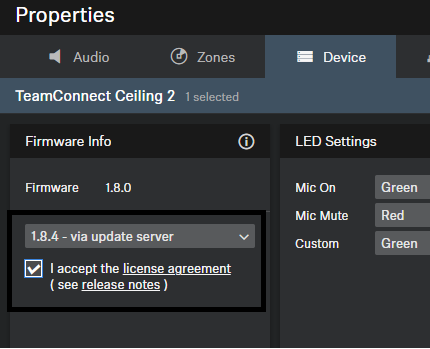
Simply drop down the menu to select the latest firmware version, accept the license agreement, and click Update.
Dante Firmware
All Dante firmware updates are supplied via Audinate's Dante Controller software, found here. This software is free of charge.
In your Dante Controller, you can verify you are up to date by looking at this button:
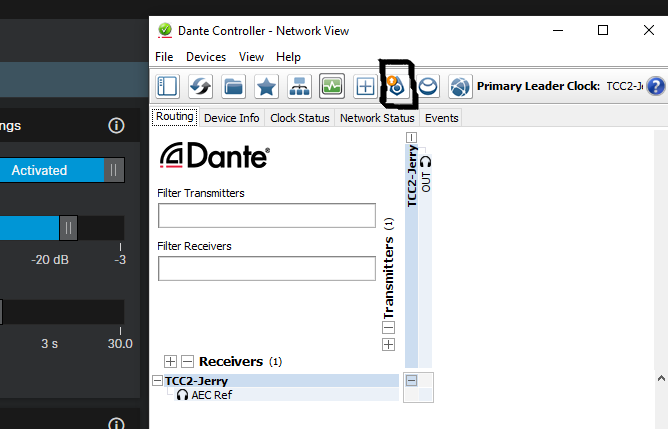
If you see the yellow arrow icon, click on this button to download and install any firmware updates available for your Dante hardware.
If a firmware update fails
If a firmware update fails, here are some tips:
1. First, check that ports 22, 45, and 69 are cleared through the firewall as the Control Cockpit utilizes these for discovery and firmware updates.
2. Always ensure your computer's network is set to Private, not Public. Public networks will limit what can pass through.
3. Check Dante Controller for any updates for your Team Connect microphone with the Control Cockpit closed. If there are any updates for your Team Connect microphone, please proceed to install them, and reboot your device after upon being prompted. Then, retry updating the firmware through the Control Cockpit for your TCC2 / TCCM microphone.
4. Our product support pages (linked below) will always have downloads for the latest firmware available if you wish to try manually installing the firmware, found within the Downloads section.
5. In some cases, it helps to have a small, unmanaged switch handy to work in a small isolated LAN setup.
Using a small switch and the computer's WiFi, try updating one unit at a time.